NeuraTiM Inklume
Write. Draw. Calculate. Keep it yours.
A local-first handwriting, document and spreadsheet app built for a tablet stylus — and still usable on a phone. Every byte lives in files you can see, on storage you picked.
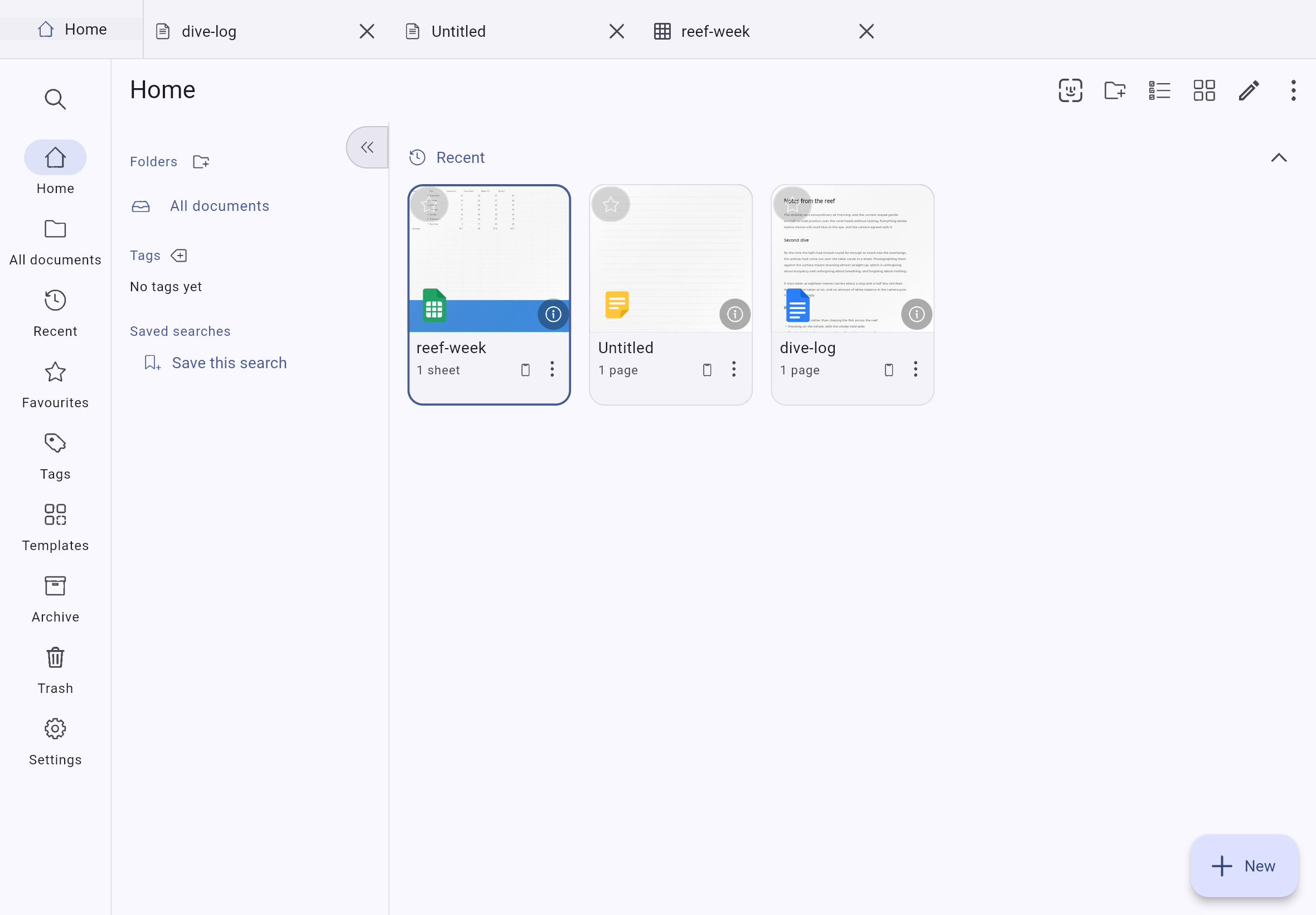
Real screens
The app, slide by slide
Every frame is a screenshot of NeuraTiM Inklume driven by hand at a tablet viewport, 1180 by 820 — first run, the library, a word-processor page, ink, a spreadsheet, and the two Insert menus that are deliberately not the same.
One capture at a time from the running app. Use Previous / Next or the thumbnails — tap Open larger for a full-screen view.
Built for a tablet
The workspace uses the whole screen
At tablet width the page navigator and tool options sit beside the paper. On a phone they fold away. On a wide desktop the library sidebar joins them.
Editor chrome that stays out of the ink
Pages and Outline on the left, the paper in the middle, colour and width on the right, pens in a dock under the page, zoom and view modes in the status bar. Every control stays reachable with a stylus in hand.
One Insert menu for everything on the page
Insert puts table, spreadsheet page, images and pages-from-a-file in one menu. Undo and redo sit next to find, import images and export. Nothing important hides behind a second mode.
Saved as you write
There is no Save button. Every committed operation is durable before the editor says Saved on this device. Discard changes is how you walk a session back.
What you can put on a page
Ink, text, tables and sheets — together
One page can hold handwriting, typed paragraphs, images, tables and a live spreadsheet. That mix is the point of Inklume.
Ink that behaves
Five pens and a highlighter, with pressure and tilt wherever the platform reports them. Per-tool smoothing, stabilisation, taper and pressure curves. An eraser that rubs out as it passes — whole stroke, vector split, or the active layer.
Shapes you accept, not imposed
Draw a rough circle and accept the clean one — or don't. Recognition runs after the stroke and offers a result, so nothing is straightened out from under you mid-sentence. A shape tool, a ruler and a lasso sit beside the pens.
Text edited in place
Tap with the text tool — or double-tap any text block — and type on the page. Paragraph styles, 24 font families, lists, alignment, spacing, colour and highlight. A caret the size of the letters beside it. A block that outgrows its page carries on down the next one, still one block.
Tables that keep their shape
A table tool with the grid-size picker every word processor has. Rich-text cells, Tab to walk them, merge and split, header row, banded rows, full width that follows the page margins. Rows grow live as you type.
Real pages
Fourteen vector page templates plus ones you design. Standard and custom paper sizes. Add, duplicate, rotate, resize, reorder, bookmarks and an outline. Margin guides while editing — never printed.
Three ways to move
Continuous scrolling, single page, or a two-page spread with the cover standing alone. Pointer-anchored zoom, Fit page, Ctrl or Cmd with the wheel, two-finger pan and pinch on a trackpad.
A pointer that waits
Pan waits before it commits: a finger down with Text or Table selected scrolls until you lift in place. A stylus and a mouse still act on contact. Finger drawing is automatic until a stylus appears, then palm rejection stays on.
Objects you can grab
A Select tool — tap, drag, rubber-band — plus corner handles. Images take borders, radius, opacity and flips. Per-page layers in Advanced mode, grouping, restacking and copy across pages.
Documents, not only notebooks
A page whose words are the page's own
New text document opens a word processor's page. There is no box on it to select, move, resize or delete, and no border to find the edge of — you type at the top, and when the words outgrow the sheet they take another one and carry on down it.
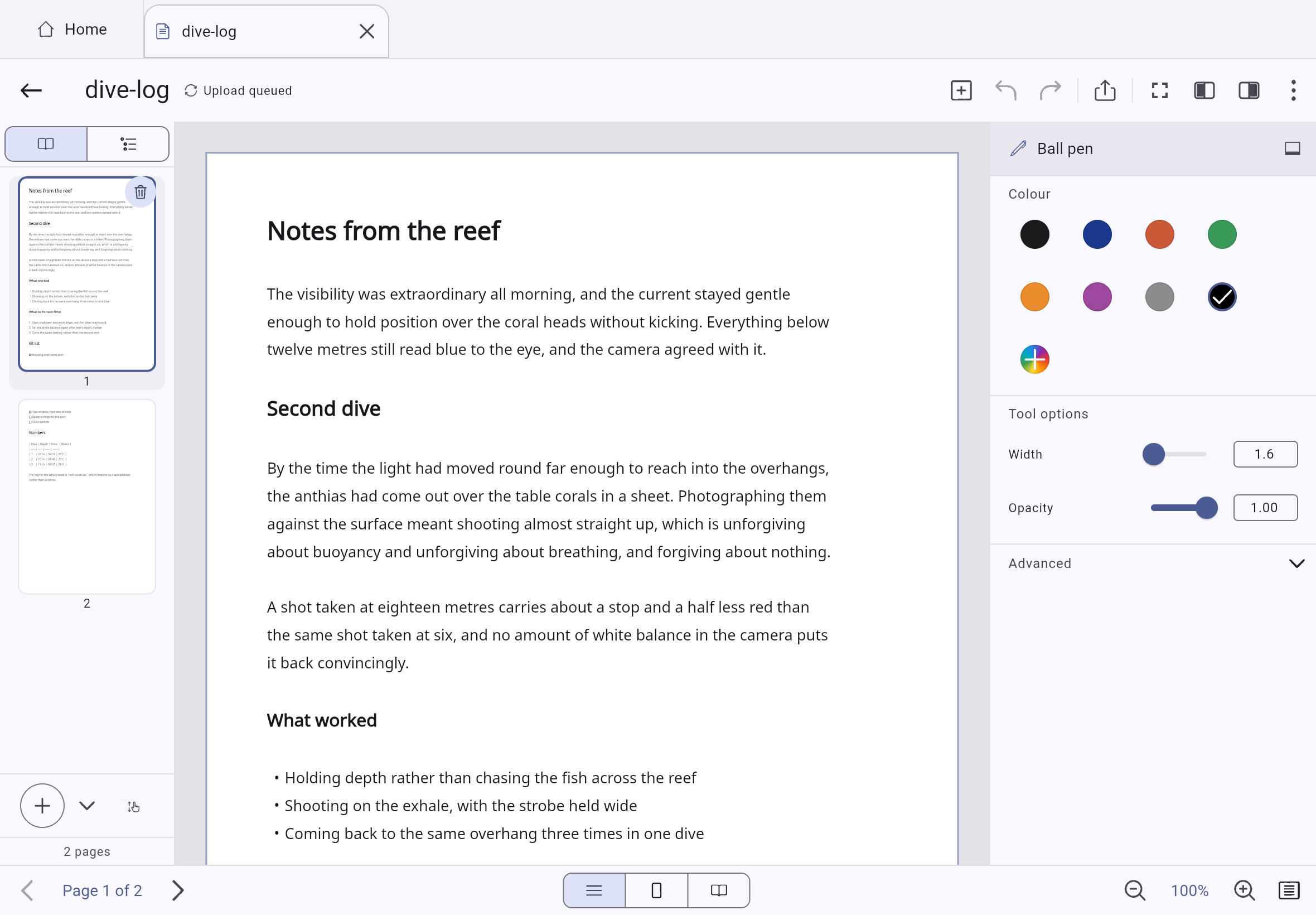
The whole bar, on the page
Paragraph styles, family and size, bold, italic, underline and strike, colour and highlight, bullets, numbers and checklists, the four alignments, line and paragraph spacing, indent and text direction. The bar a word processor's bar carries.
Text that runs over a page
A block grows as it is typed into, and when it reaches the foot of the page it carries on down the next one — taking a page if there is not one, and giving it back when the words no longer need it. It stays one block: one width, one selection, one Delete, one undo step.
Words that break with a hyphen
Hyphenate long words offers a break inside every long word of the selected paragraphs, so a justified column stops leaving rivers of white space down the middle. Ctrl+hyphen puts one exactly where the caret is, for the word the pattern gets wrong.
…and they survive the export
The offers are characters in the document rather than a setting on a paragraph, so the words break the same way in the editor, on the page, in a PDF and in a .docx — and a search for the word still finds it, because anything comparing text reads straight through them.
Your own paragraph styles
Save the formatting you are looking at as a named style, apply it from the style menu, and Update style from selection restamps every paragraph in the document that uses it, in one undoable step. Styles live in the library, so they are there in the next document too.
Both kinds of paper, one document
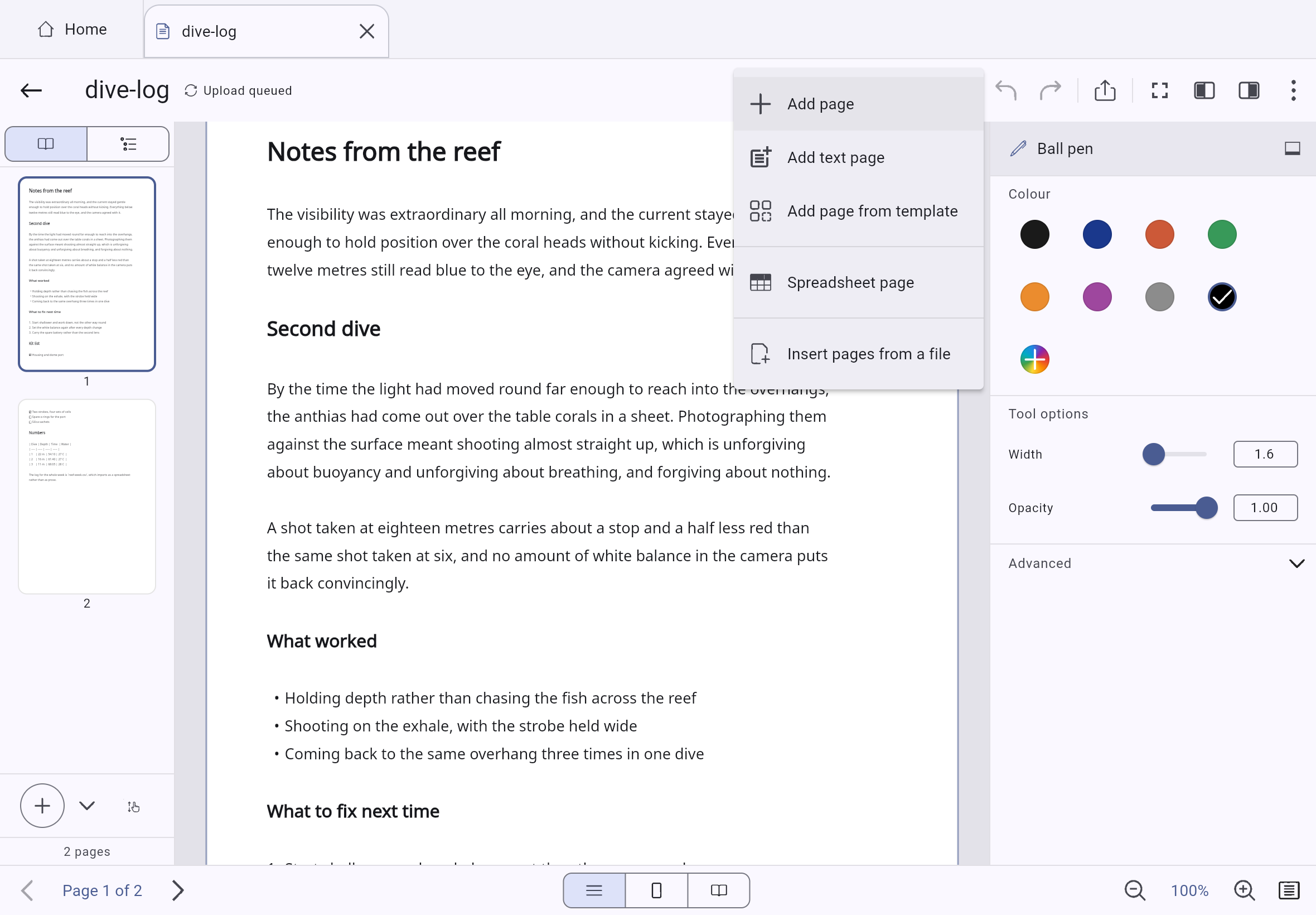
Any document can grow by one. Insert → Add text page puts a written page in a notebook of ink, and a page of drawing in a written document. A page of prose and a page of canvas are two kinds of paper in one document, and each behaves as its own kind.
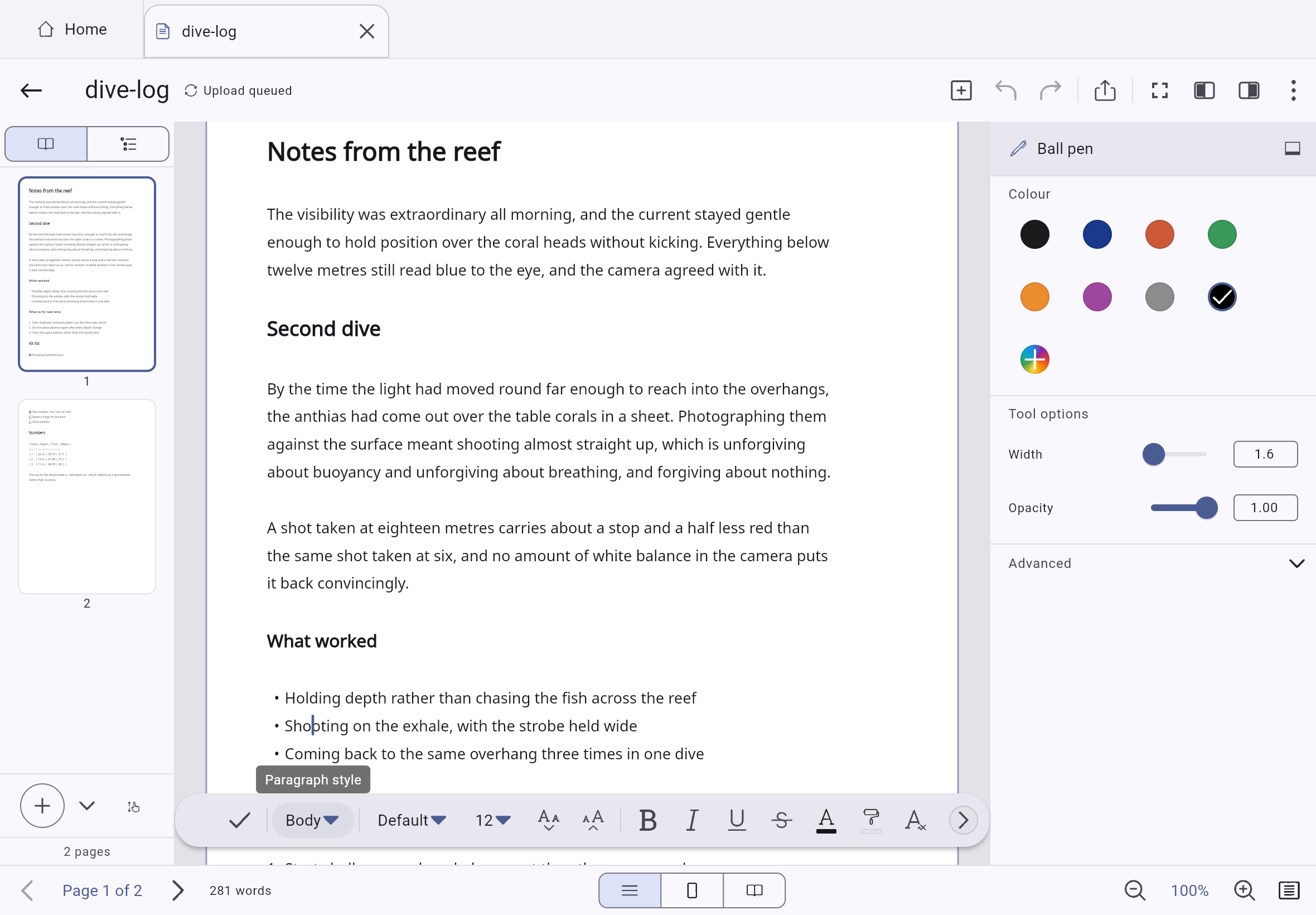
The keys the same fingers already know
- Ctrl+B / I / U
- Bold, italic, underline
- Ctrl+L / E / R / J
- The four alignments
- Ctrl+] and Ctrl+[
- Indent and outdent
- Ctrl+Z and Ctrl+Y
- Undo and redo, with the caret still in the text
- Ctrl+hyphen
- One break offer, exactly where the caret is
- Ctrl+F
- Find in the document
Numbers on the same paper
A real grid — on a page, or as the page
Ninety-six functions, A1 references, fill handles, freeze panes, borders that print, and a formula bar that appears above the canvas while a sheet is under the viewport.
A sheet that is a page
Insert → Spreadsheet page adds a page that is a sheet, edited on the paper at print size. Columns re-divide to the margins. On paper the cells draw no grid of their own unless you ask for borders.
A sheet inside a document
A smaller grid can sit as a block beside ink and text. Resizing it changes how much is visible rather than scaling the cells. Double-tap opens it. Both export to Word and OpenDocument as real tables.
Formulas the way a grid is meant to
Typing = turns every tap into a cell address. Dragging picks a range. A searchable function browser shows what each function does and the arguments it takes. Picking one inserts the name with both brackets.
Select, fill, never fight the scroll
One finger always means select — tap a cell, drag a rectangle, press the ring to move, drag the fill handle to continue a series. Nothing scrolls the sheet except the wheel, a trackpad or a second finger.
Find it again
A library you arrange
Home, All documents, Recent, Favourites, Tags, Templates, Archive and Trash — every filter narrows every list and says so in a removable chip.
Organise without ceremony
Nested folders with cycle prevention, tags, favourites, archive, Trash with retention, multi-select batch actions, merge documents, extract pages, and content-hash duplicate detection. Undo for library actions.
Find it offline
An incremental index over titles, headings, folders, tags, typed text, bookmarks and outlines. Results are ranked and grouped. A bookmark in Search saves the live query and the live filters.
A Home page you arrange
Reorder Home sections, hide any of them, collapse them, and set how many items each shows. A pinned folder becomes a section listing its own documents. Covers show the top of the first page — or a picture you choose.
Read first, edit when you mean to
Opening a document shows it read-only by default: pan, pinch, outline, find and page number, with no tool that can mark it. Edit is one tap. What you read is what you wrote — the same canvas.
Bring work in, take work out
Import a file. Export what you made.
New → Import a file turns a PDF, image, plain text, Markdown or CSV into an ordinary document, opened ready to write on.
Annotate a PDF by writing on it
A PDF page — or a photograph, or a scan — arrives as a locked background under an empty editable layer. Ink, text, shapes and checkmarks go on top; nothing above can damage what is underneath. Filling in a form is typing on it.
Pages into the notebook you have open
Insert pages from a file does the same into a document already open. Markdown keeps headings, lists, checklists, quotes and code. A CSV becomes a spreadsheet, with quoted commas surviving.
Own the result
Export the portable .inklume package, PDF, PNG, Word (.docx), OpenDocument (.odt), Markdown, or CSV from a spreadsheet. Print through the system dialog. Every export's caveats are shown when it finishes.
Sync and backup
Your storage, or none at all
Inklume works fully offline and stays that way until you point it at somewhere to sync.
Sync, honestly
A provider-neutral engine over immutable objects, with a local-folder adapter and a WebDAV adapter. Each provider card states what it can and cannot do, and the app never claims background delivery it cannot make.
Backup, separately
Sync is not backup — a deletion syncs too. Backups are verified archives with a preview-first restore that never overwrites anything newer than what you are restoring.
Documents are files
A CBOR snapshot plus an append-only log of operations, with content-addressed assets alongside. Replaying that log is a pure function every device runs identically, which is what makes two devices converge.
Versions and discard
Optional versions are whole documents, off by default. Discard changes returns the document to exactly what it was when opened — rewriting storage rather than hoping the undo stack is long enough.
Locking
Two ways to close something, and they stay apart
A locked item is still there and still findable — it just will not open. The Secret section is not there at all. Unlocking one has no effect on the other, and neither of them is encryption: they hide things inside Inklume, and Cloud storage encryption is the separate feature that protects the bytes on disk.
Listed, findable, and closed
Lock any document or folder with your library passcode or one of its own. It stays locked across restarts until you unlock it, and locking it again is a single tap that asks for nothing.
- Listed with a key across the cover, findable by title, and refused on open — by title only: the result row carries no excerpt of the document and nothing that reads its pages is offered while it is locked.
- One file can be opened out of a locked folder without opening the folder. The rest of the folder stays shut, and locking the folder again closes it.
- A document with its own passcode inside a locked folder asks for both.
- An item that has a passcode wears a small open padlock while it is unlocked, so a folder you lock every evening never looks like one that has never been locked.
- Lock everything, beside the Secret section's control, appears whenever any of them is open and closes all of them at once.
- Face ID, Touch ID or a fingerprint opens any of it, on a device where you switched it on.
Not listed at all
A section that is not listed anywhere until you unlock it — not in the library, not on Home, not in Trash, and not in a search. Put whatever folders and documents you like inside it.
- Nothing inside it is listed or searched while it is closed, so nothing announces that it is there.
- Open or closed for the session only. It is never left open across a restart.
- Items inside it are not separately lockable — the section already closes them, and a second passcode in a place nobody can see is a second passcode to lose.
- Turning the library passcode off reveals it and deletes nothing.
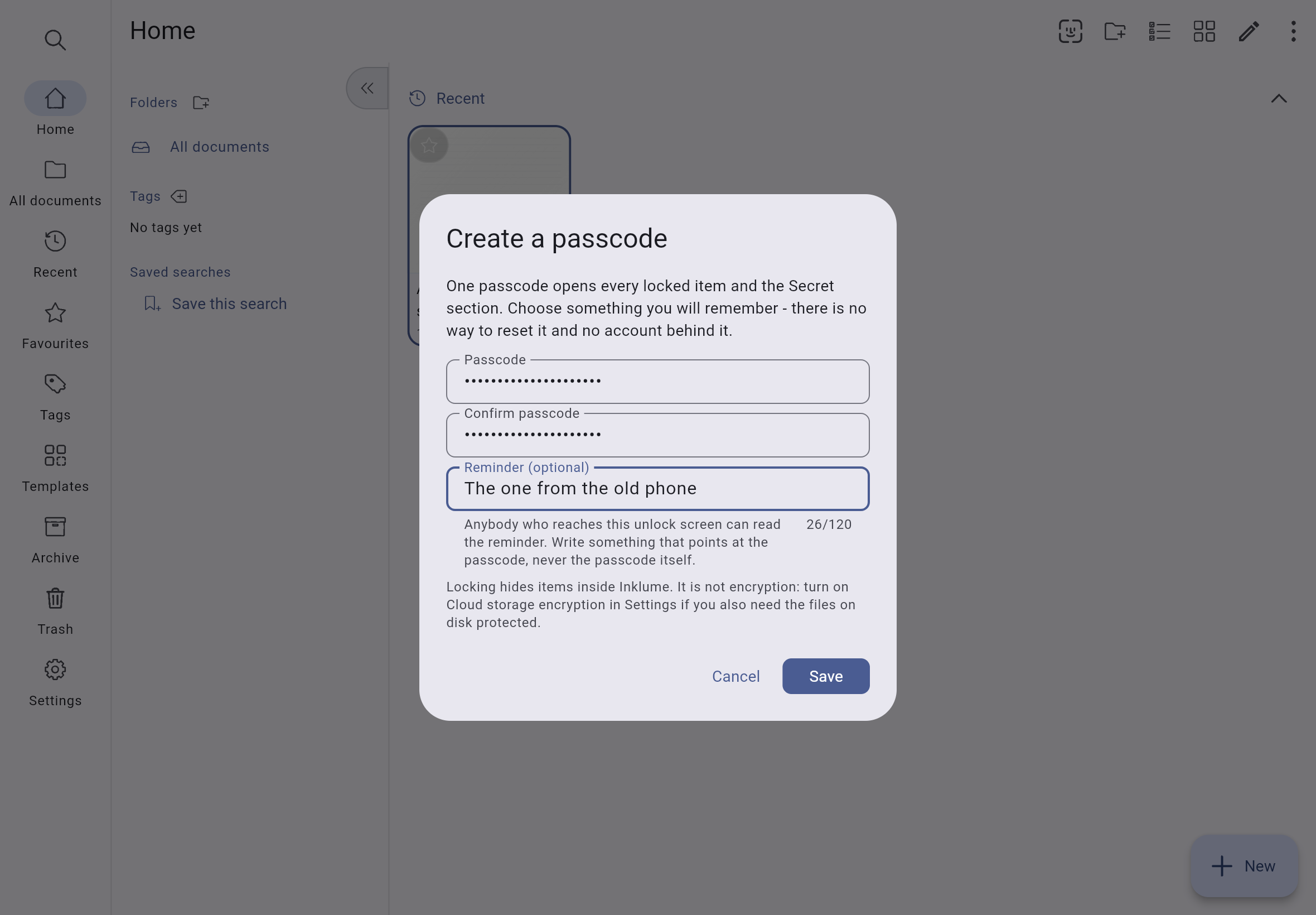
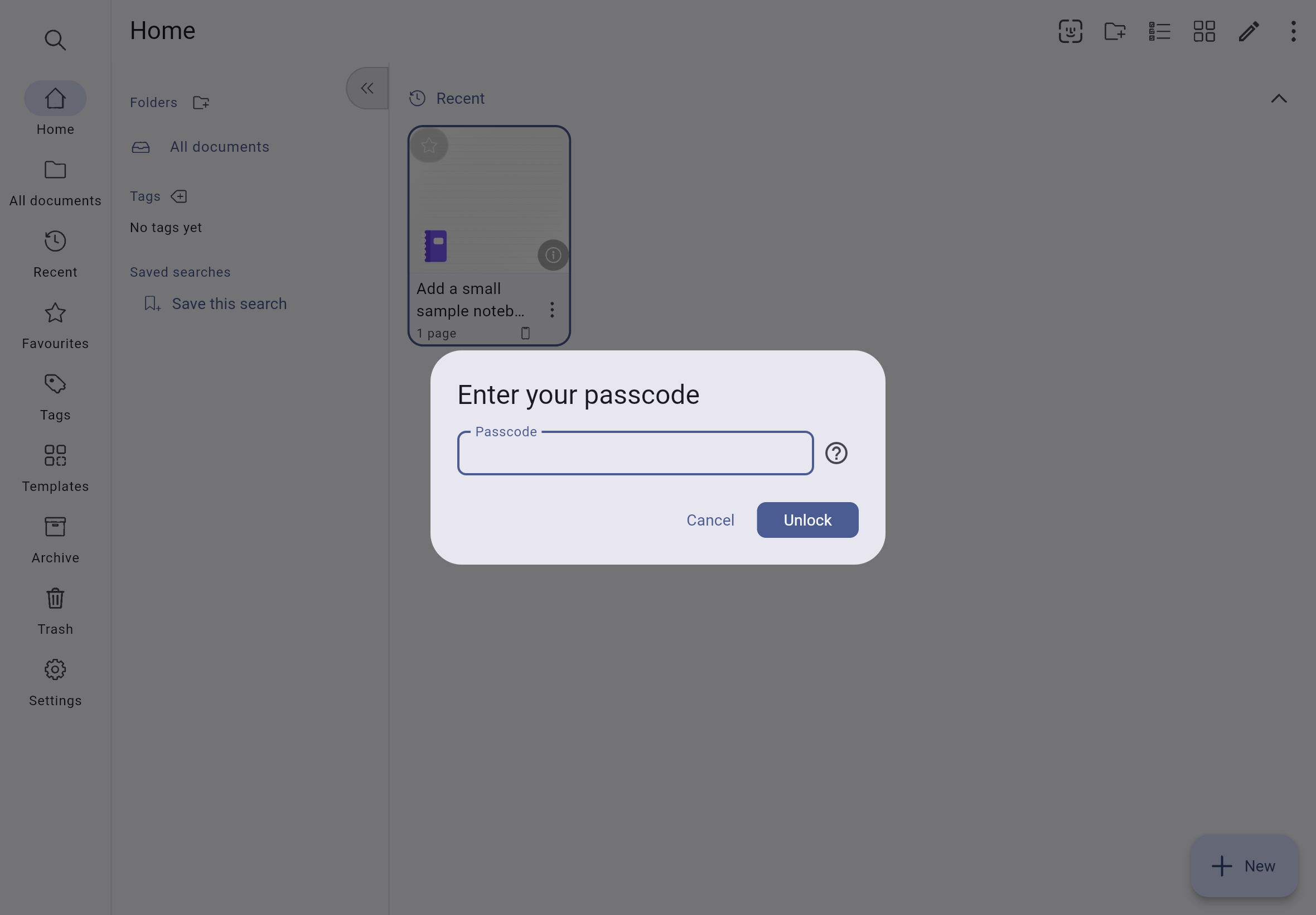
Locking hides things inside Inklume. It is not encryption at rest: someone with your device unlocked and a file browser can still read the library folder, which is what Cloud storage encryption is for — the two work together. A reminder is not protected either, and cannot be: it is shown before anyone has authenticated, which is the whole point of a hint and its whole limitation. Inklume refuses one that contains the passcode.
On a phone
A tablet app that is honest on a phone
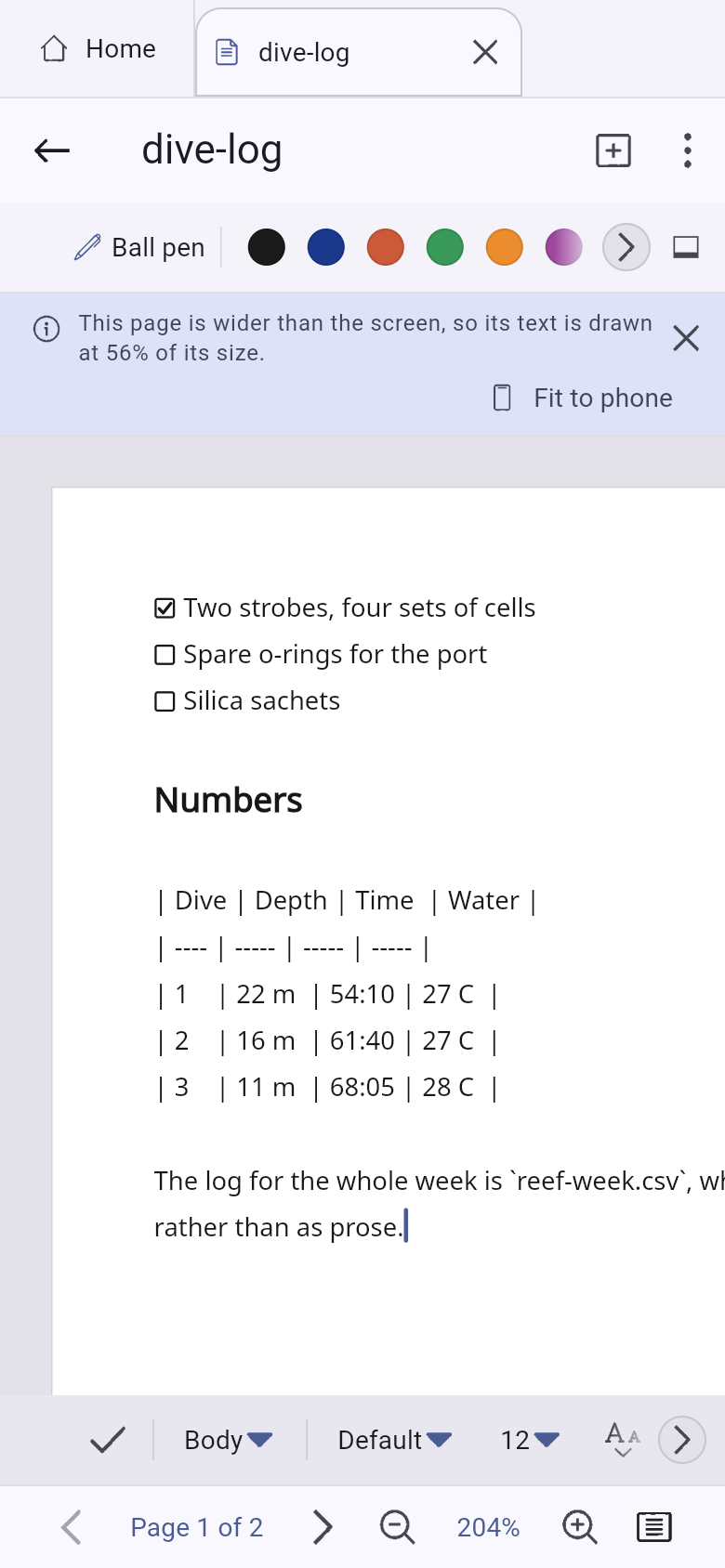
Inklume is built for a tablet stylus, and a phone is a different shape rather than a smaller one. So the workspace folds to one pane, the panels become drawers, and the app says out loud what a narrow screen costs instead of quietly shrinking everything.
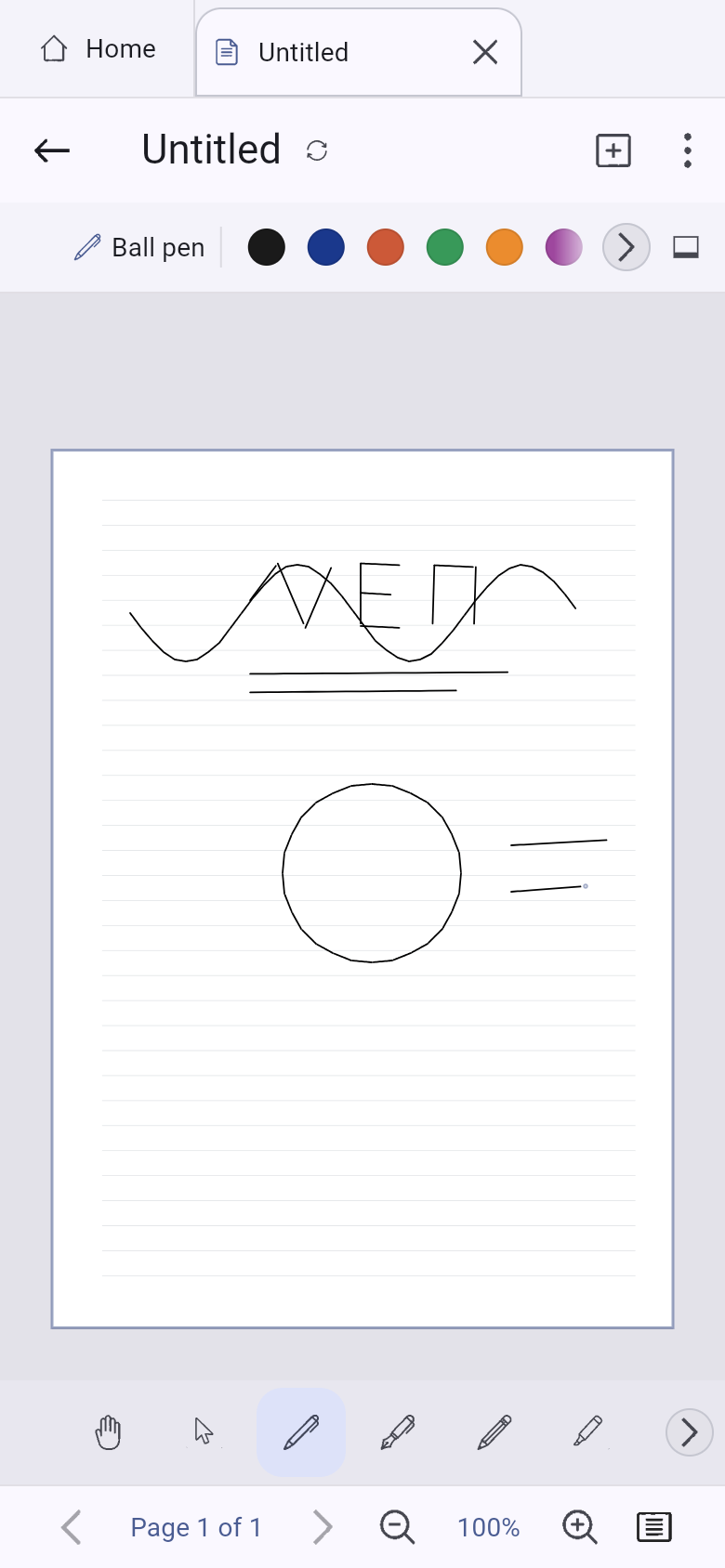
It tells you what it had to do
An A4 page is wider than a phone, so its text would be drawn at about half size. Inklume says exactly that — “this page is wider than the screen, so its text is drawn at 56% of its size” — and offers Fit to phone, which changes the paper rather than the zoom.
The tools stay reachable
Pens, colours and the tool dock stay where a thumb reaches, and the page keeps the whole width above them. Nothing important moves behind a second mode.
The library folds rather than disappears
The folders, tags and saved-search panel folds to an icon rail and becomes a drawer below the width that has room for a column — which is what finally makes tags and saved searches reachable on a phone at all.
Details, at every width
Every document's details are a bottom sheet on a phone, a side sheet on a tablet and a trailing column on a desktop. Same panel, three shapes, one info button on every tile and row.
Privacy
There is no backend to trust
Inklume has no server of its own. Ordinary use makes zero network requests. Nothing about your notes is collected, because there is nowhere for it to go.
- No account and no sign-in — the app has no idea who you are.
- No analytics, no crash reporting, no advertising identifiers.
- Documents are files under a library root you choose, not rows in someone's database.
- Sync, once you turn it on, goes to a local folder or a WebDAV server you already own.
- Optional end-to-end encryption with XChaCha20-Poly1305 and Argon2id, and the warning about the passphrase comes before the switch, not after it.
- A backup is sealed with a passphrase by default — whole-archive, so titles stay secret too.
Nothing leaves unless you send it
No account, no developer-owned server, and no telemetry of any kind. There is nothing to opt out of.
Honest about the gaps
What it cannot do yet
Stated plainly, because the alternative is a control that cannot do its job.
- An imported PDF always keeps its original appearance, so its words are not reflowable and a PDF form's own fields are not detected — filling one in means typing on top of it. Import does offer to feed the file's embedded text to library search; that is searchable metadata, not guessed editable text boxes.
- Importing a PDF in a browser downloads a renderer once; every other platform has one installed and nothing leaves the device.
- No .docx or .odt import — export is implemented; reading a constrained subset back is separate work.
- Spell checking is Android and iOS only; the setting is absent on desktop and web rather than present and inert.
- PDF export renders pages: ink is not vector in the PDF, and text is not selectable.
- No OCR or handwriting recognition, so handwriting is not searchable.
- No camera scanning and no audio attachments.
- A scanned PDF can only be pictures: there is no OCR, so a file with no text layer falls back to the picture route and says that it did.
- Hyphenation is a pattern rather than a dictionary — a prefix, a suffix and the shape of the consonants between two vowels. Where it differs it opens a syllable a letter early, which is how British typesetting has always broken them.
- A word-processing page holds words and nothing else: tables, images, shapes and ink live on a canvas page, and a document holds both kinds at once.
- The page breaks where the page ends — no keeping a heading with the paragraph under it, no widow and orphan control, no column balancing.
- No charts, pivot tables, .xlsx import, or RAND / RANDBETWEEN — every value stays derived from what is stored.
- A sort moves the data and the formulas follow it, but a B2:B4 span inside a sorted block is left exactly as typed — reordering is a permutation, and a span that covered the block still covers the same rows.
- Google Drive, OneDrive, Dropbox and iCloud Drive are named on the sync screen and explained rather than offered.
- No operating-system background sync task: changes travel while Inklume is open and online.
Each of these is a thing to build, not a thing to word around.
Free
No price, no catch, no account
Inklume is free because it costs almost nothing to run — there is no server to pay for.
If it saved you buying something else, you are welcome to say thanks. Nothing in the app changes either way — there is no upgrade to unlock.
Quickest way to tip
Other ways to say thanks:
Prefer email? Send a tip
Get it
Write on whatever you already own
The same documents and the same file format on every platform Inklume runs on — a Windows desktop, an Android tablet, an iPad, a Mac, or a browser tab.
Windows
The full desktop workspace, and Windows Hello opens a locked document. Ships as an MSIX the Store signs.
Android
In closed testing on Google Play. Join the tester list and it installs like any other app.
macOS
The desktop workspace on macOS — library sidebar, page navigator, inspector and status bar at once.
iOS
iPhone and iPad. On an iPad the page navigator and the tool options open beside the page.
Everything is free, and there is no account to make. The Windows build ships through the Microsoft Store as an MSIX (x64, Windows 10 1809 or newer); until its product page is live the link opens the Store's own search for it. The Mac build is in preparation, so that card says so rather than sending you nowhere.