NeuraTiM Inklume
Write. Draw. Calculate. Keep it yours.
An app for handwriting, documents and spreadsheets that saves your work on your device. Designed for a tablet and stylus, with a layout that adapts to your phone. You decide whether to sync and which storage to use.
Real screenshots
Take a look around
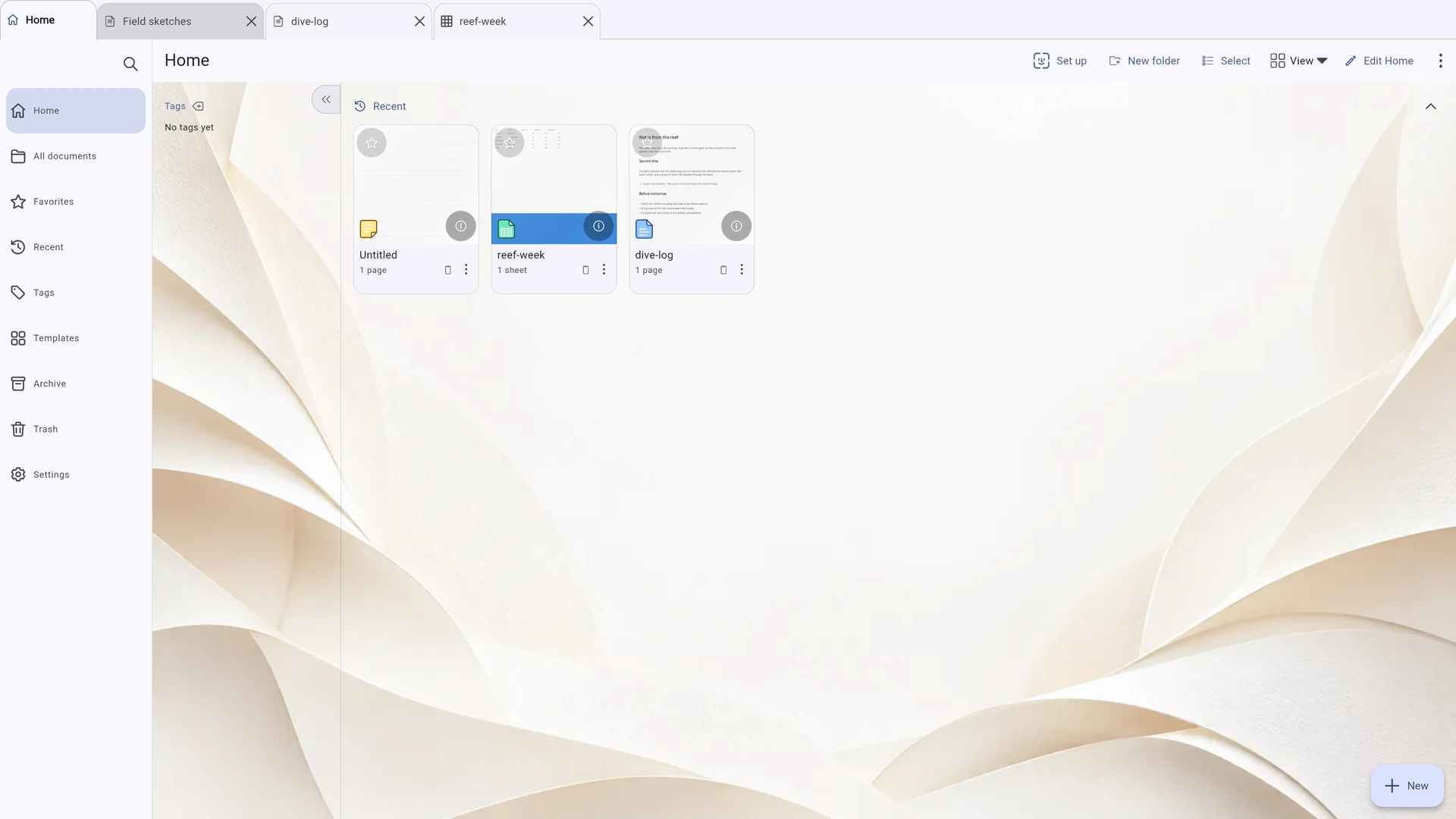
Screenshots of the running app in a tablet-sized view of 1180 × 820: the library, text editing, handwriting, spreadsheets and the Insert menus for text and canvas pages.
Use Previous, Next or the thumbnails to browse. Choose Open larger for a full-screen view.
Built for a tablet
Give your page room to breathe
On a tablet, the page navigator and tool options sit beside the page. On a phone, they tuck into panels you can open when needed. A wide desktop also has room for the library sidebar.
Your page takes centre stage
Pages and Outline on the left, your page in the centre, colour and width on the right, and pens below. Zoom and view modes sit in the status bar. Everything is within reach of your stylus.
One menu, suited to the page
The Insert menu brings page commands together. On canvas pages, it also includes tables and image import. Text pages show only the options they support. Undo, redo, find and export stay close at hand.
Saved as you go
Inklume saves each completed change before showing Saved on this device. Its own pages need no Save button. To undo all changes made since opening a document, choose Discard changes. The dedicated PDF editor also saves automatically, with an extra Save button for saving immediately.
What you can put on a page
Handwriting, text, tables and spreadsheets — all on one page
Combine handwriting, typed text, images, tables and an interactive spreadsheet on a canvas page. Choose a text page when you just want to write.
A pen that feels right
Choose from five pens and a highlighter, with pressure and tilt support on compatible devices. Adjust smoothing, stabilisation, stroke taper and pressure curves for each tool. Erase whole strokes or just parts of them, or limit erasing to the active layer.
Your shapes, your choice
Draw a shape, then decide whether to accept a neater version. Shape recognition runs after you finish the stroke, so it does not interrupt your writing. A shape tool, ruler and lasso are also available.
Type right on the page
Tap the page with the Text tool or double-tap a text block to type in place. Use paragraph styles, 24 font families, lists, alignment, spacing, colour and highlighting. The text cursor matches the font size, and long text blocks flow onto the next page.
Tables that fit your content
Choose a table size from the grid. Format text in cells, move between them with Tab, merge or split cells, and add a header row or alternating row colours. Full-width tables fit within the page margins, and rows grow to fit your text.
Make the page your own
Start with one of 14 vector page templates or design your own. Choose a standard or custom paper size. Add, duplicate, rotate, resize and reorder pages, with bookmarks and an outline to help you navigate. Margin guides appear while editing but are never printed.
Three ways to view your pages
Choose continuous scrolling, a single page or a two-page spread with a separate cover. Zoom around the pointer, fit the page to the screen, or zoom with Ctrl or Cmd and the mouse wheel. On a trackpad, use gestures to pan and pinch to zoom.
Scroll without accidental marks
With the Text or Table tool selected, drag a finger to scroll, or tap and release to insert text or a table. Stylus and mouse input respond immediately. You can draw with a finger until a stylus is detected; after that, palm rejection stays on.
Move things into place
Select objects by tapping, dragging or drawing a selection box. Resize them using the corner handles. Add borders and rounded corners to images, adjust their opacity or flip them. Group objects, change their stacking order and copy them between pages. Advanced mode adds layers for each page.
More than a notebook
Just start typing
Choose New text document and write straight onto the page. No text box to move or resize. When you reach the bottom, your words continue onto the next page automatically.
Familiar tools, right there
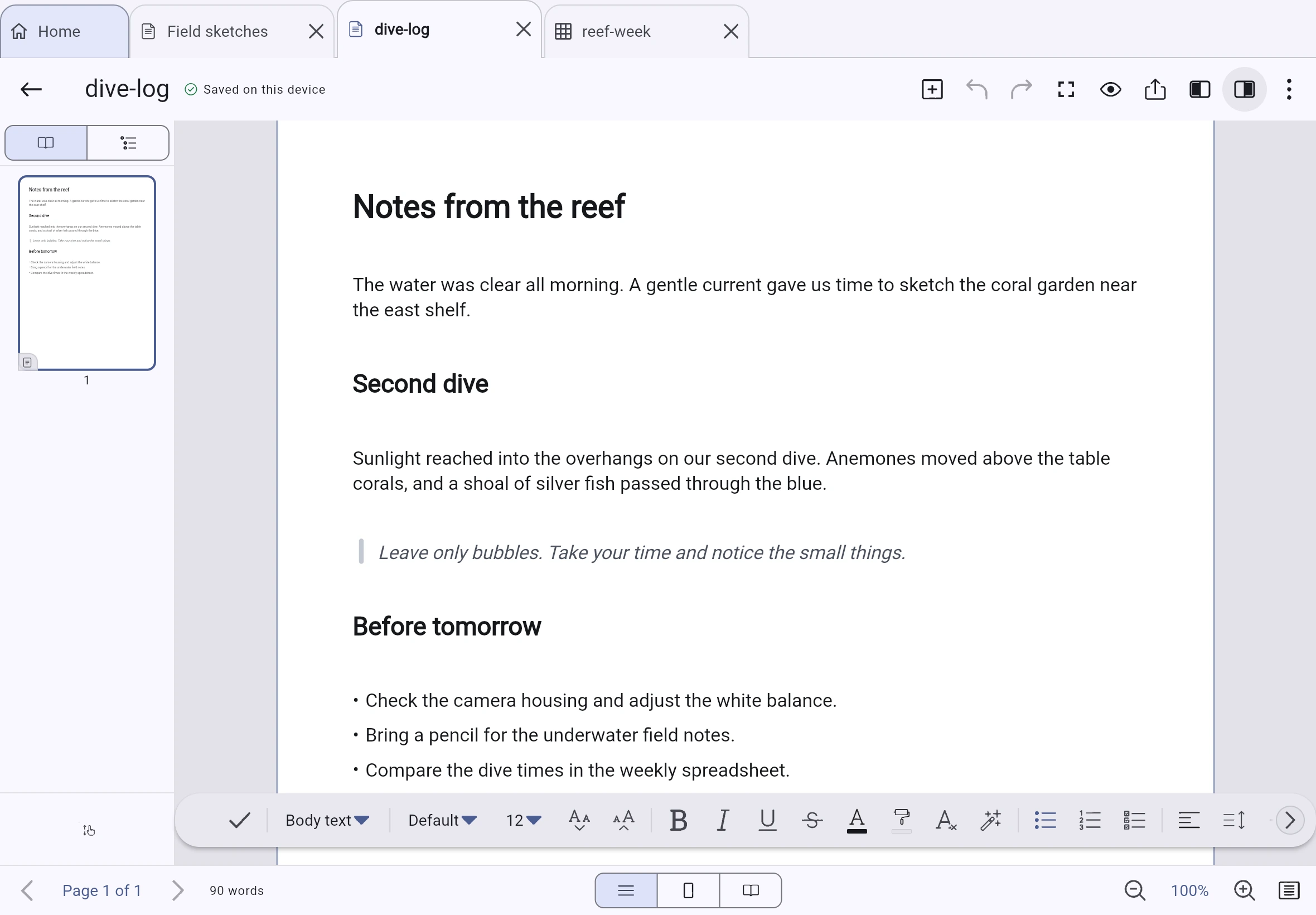
Paragraph styles, fonts and sizes, bold, italic, underline and strikethrough, colour and highlighting, lists and checklists, four alignment options, spacing, indentation and text direction — all in the formatting bar.
Keep writing. The pages follow.
Text flows onto the next page as you type. Extra pages are added as the text grows and removed when they are no longer needed. Text that spans several pages still acts as one block when you select it, change its width, delete it or undo a change.
Better breaks for long words
Hyphenate long words adds optional word-break points to selected paragraphs, helping reduce wide gaps in justified text. To choose a break point yourself, place the cursor in the word and press Ctrl+- to insert a soft hyphen.
Break points that survive export
Soft hyphens are stored with the text, preserving your chosen break points in the editor and in PDF and .docx exports. Words containing them can still be found in searches.
Styles that are yours
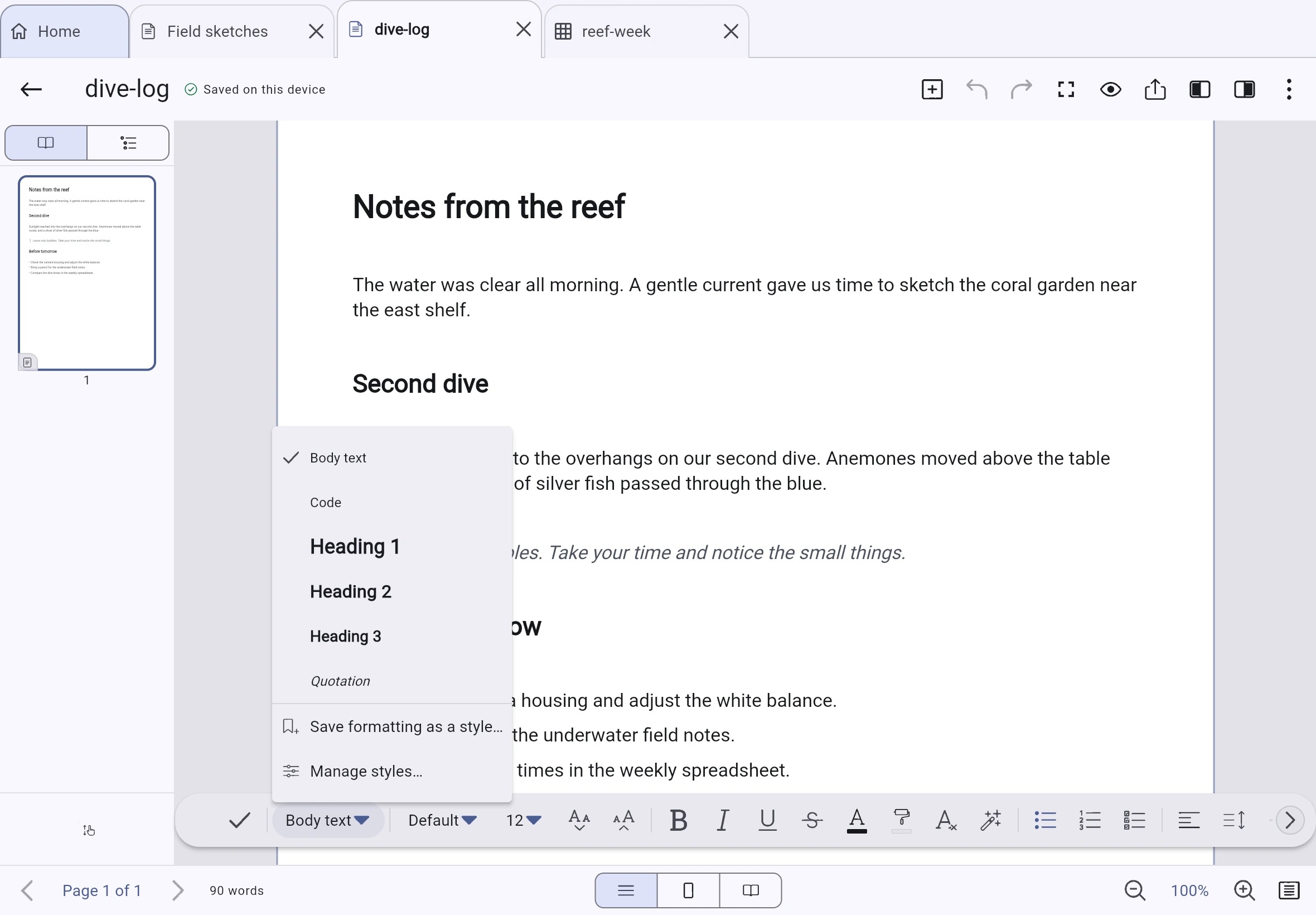
Save formatting as a named style and apply it from the style menu. Choose Update style from selection to change every paragraph using that style in one step you can undo. Styles are saved in the library so you can use them in other documents.
Two page types. One document.
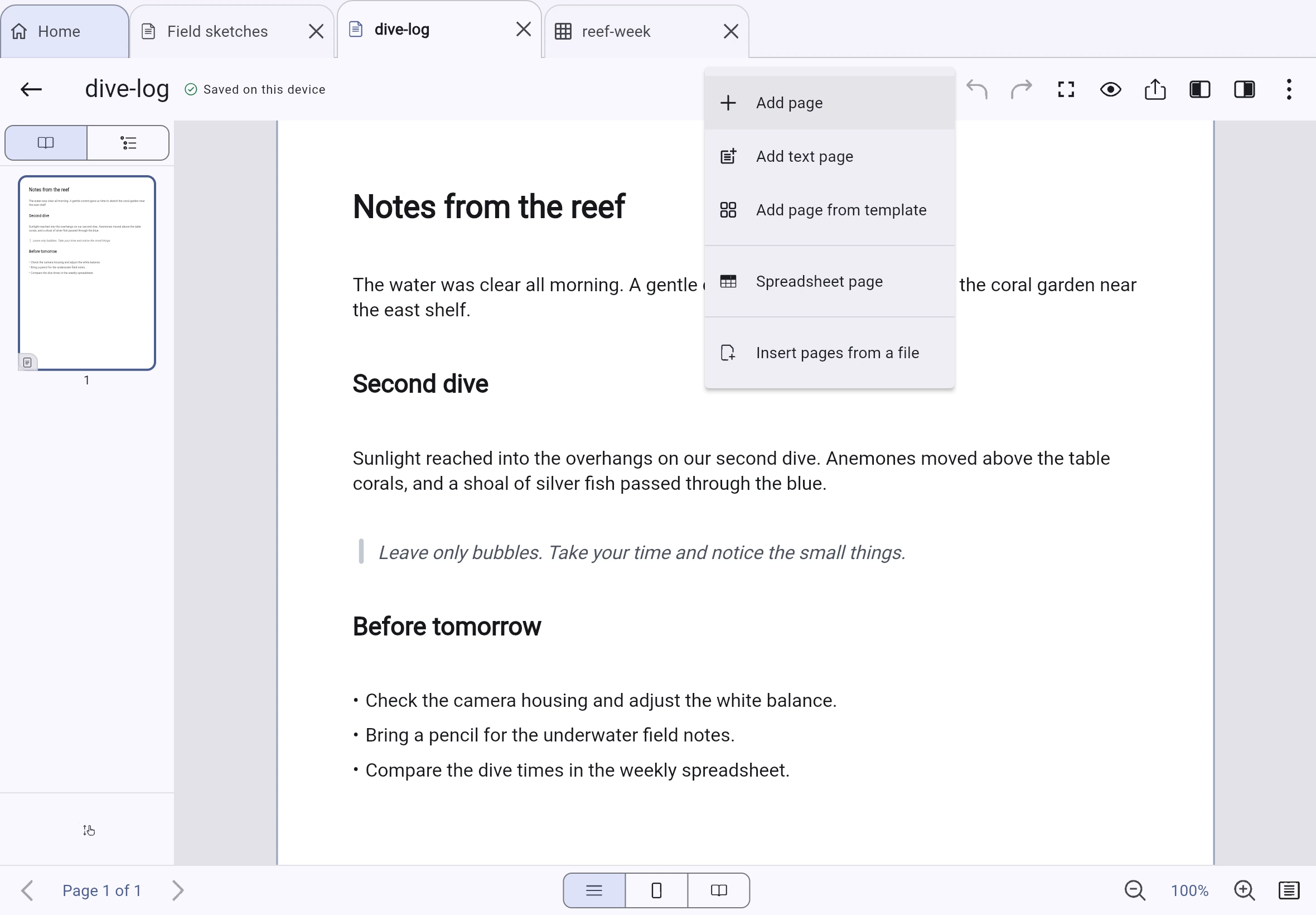
Combine text and canvas pages in one document. Choose Insert → Add text page for text that flows between pages, or add a canvas page for drawings, tables and images. Each page type has the tools it needs.
Shortcuts you already know
- Ctrl+B / Ctrl+I / Ctrl+U
- Bold, italic, underline
- Ctrl+L / Ctrl+E / Ctrl+R / Ctrl+J
- Align left, centre, right or justify
- Ctrl+] / Ctrl+[
- Increase or decrease indent
- Ctrl+Z / Ctrl+Y
- Undo or redo without leaving the text
- Ctrl+-
- Insert a soft hyphen at the caret
- Ctrl+F
- Find in the document
Make room for numbers
A spreadsheet on the page — or a page of its own
Use 96 functions, A1-style cell references, fill handles, frozen panes and printable cell borders. The formula bar appears above the canvas when a spreadsheet is in view.
A whole page for your spreadsheet
Choose Insert → Spreadsheet page for a full-page spreadsheet displayed at print size. Columns fit within the page margins. Gridlines are not printed; add cell borders when you need visible lines in print.
Numbers beside your notes
Place a smaller spreadsheet beside handwriting and text on a canvas page. Resizing changes the visible area, not the cell size. Double-tap to edit. Both embedded and full-page sheets export to Word and OpenDocument as tables.
Formulas, without the guesswork
Start a formula with =, then tap a cell to insert its reference or drag to select a range. Browse or search functions, with descriptions and arguments to guide you. Select a function to insert its name and parentheses.
Select and fill without scrolling by mistake
Use one finger to select cells or drag out a selection. Move the selection using its ring-shaped handle, or extend a series with the fill handle. To scroll, use the mouse wheel, a trackpad or a second finger.
Find it again
A library, your way
Browse Home, All documents, Recent, Favourites, Tags, Templates, Archive and Trash. Use filters across these views, and remove an active filter by dismissing its label.
Keep your library in order
Organise documents with nested folders, tags, favourites and an archive. Choose how long items stay in Trash, work on several documents at once, merge documents or extract pages. Review documents with identical content before deciding which copies to keep. You can undo library actions.
Find it, even offline
Search document titles, headings, folder and tag names, typed text, bookmarks and outlines — even offline. The search index updates as you work, and results are ranked and grouped. Save a search with its filters to use it again later.
Make Home your own
Reorder, hide or collapse the Pinned and Recent sections, and choose how many items they show. Pinned folders and documents appear together. Document covers show the top of the first page or an image you choose.
Read first. Edit when you choose.
Documents open in reading mode, so you can scroll, zoom, search and use the outline without changing anything. Tap Edit when you are ready. The page looks the same in either mode.
Bring files in. Take your work with you.
Import a file. Export what you create.
Choose New → Import a file to turn a PDF, image, plain text, Markdown or CSV file into a document you can work on.
Write on a PDF
Import a PDF page, photo or scan as a fixed background. Add handwriting, text, shapes and checkmarks on a separate layer without changing the original background. To fill in a form, place text over its fields.
Add files to your notebook
Choose Insert pages from a file to add content to an open document. Markdown imports preserve headings, lists, checklists, quotes and code. CSV files become spreadsheets, keeping commas inside quoted fields intact.
Take your work with you
Export your work as a portable .inklume package, PDF, PNG, Word (.docx), OpenDocument (.odt) or Markdown file. Export spreadsheets as CSV, or print through the system dialog. Any export limitations are reported when the export finishes.
Sync and backup
Sync to your storage — or not at all
Write and edit offline. Set up sync only when you need it, using storage you choose.
Sync on your terms
Sync to a local folder or a WebDAV server. Each storage option has a card explaining its capabilities and limits. Changes sync while Inklume is open and online, not through an operating-system background task.
A backup is different
Sync is not a backup: deletions sync too. Backup archives are checked for integrity. Preview a restore before applying it; older backup content does not overwrite newer content.
Files, not a locked-in database
Documents use a CBOR snapshot, an append-only change log and supporting files identified by their content. Devices apply the same recorded changes consistently to help keep their copies in sync.
Keep past versions. Undo a session’s changes.
Optional version history saves whole-document versions and is off by default. Discard changes restores the document to how it was when you opened it, even when the undo history no longer contains all of those changes.
Locking
Lock an item. Or keep a section hidden.
A locked document or folder stays visible and searchable by title, but cannot be opened. The Secret section stays hidden until unlocked. The two controls are independent. Neither encrypts your files; encryption is a separate feature.
Visible, but locked
Protect a document or folder with your library passcode or a separate passcode. It stays locked, even after restarting the app, until you unlock it. Lock it again with one tap, without re-entering the code.
- Locked items show a key icon on their cover. Search can find their titles, but does not show text previews or allow actions that read page contents.
- Unlock a single file in a locked folder without unlocking everything else. Locking the folder again also relocks that file.
- A document with its own passcode inside a locked folder requires both codes.
- An unlocked item with a passcode shows an open-padlock icon, so you can tell it apart from an item with no passcode.
- When protected items are unlocked, Lock everything appears beside the Secret section control. It locks all protected items at once.
- Use Face ID, Touch ID or fingerprint authentication where supported and enabled on your device.
Hidden until you unlock it
Keep folders and documents in a separate section. Its contents stay hidden from the library, Home, Trash and search until you unlock it.
- While the section is locked, its contents do not appear in lists or search results.
- The section stays unlocked only for the current session. Restarting the app locks it again.
- Items inside cannot have separate locks: access is controlled by the section itself.
- Turning off the library passcode makes the section visible. Nothing is deleted.
- While the Secret section is open or a protected document is on screen, Android blocks screenshots and recent-app previews. iOS hides the content in the app switcher. Android keyboards are also asked not to learn from what you type. These protections do not apply to fields in the dedicated PDF editor.
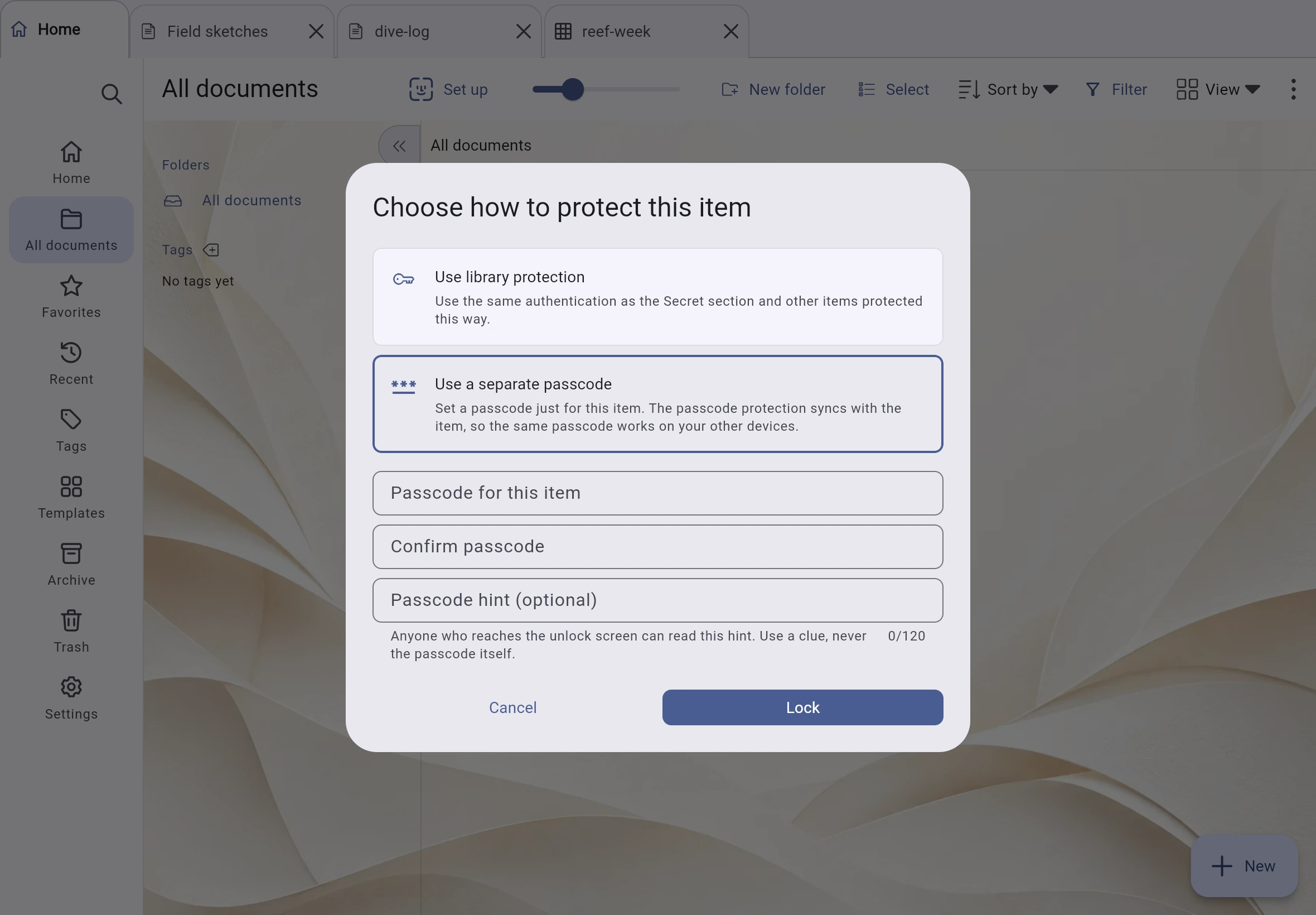
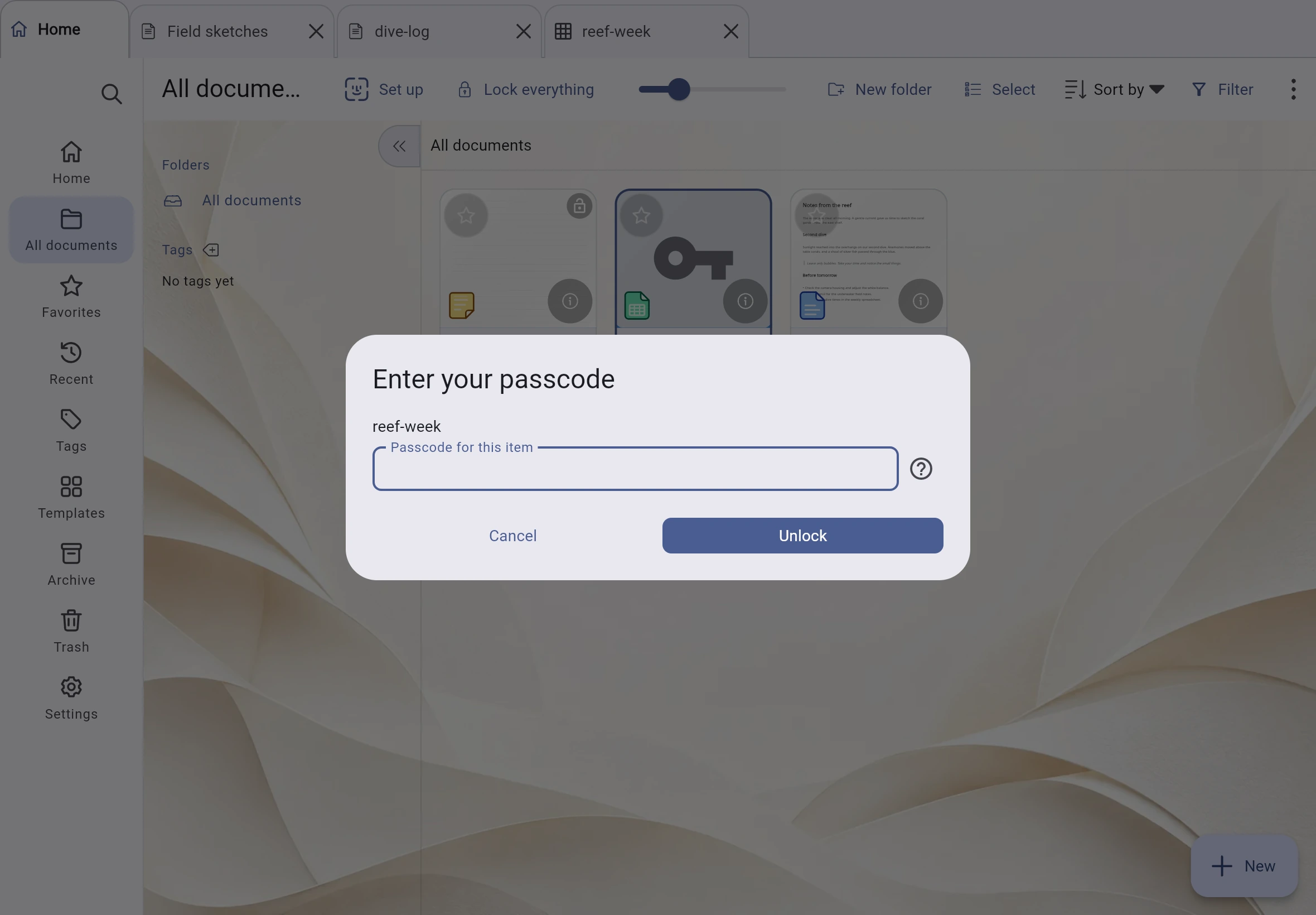
Locking does not encrypt the library folder. Someone with access to those files may still read them. Encryption must be enabled separately where available. Passcode hints are visible before unlocking, so do not include sensitive information. Inklume rejects hints that contain the passcode.
On a phone
A smaller screen, a layout that fits
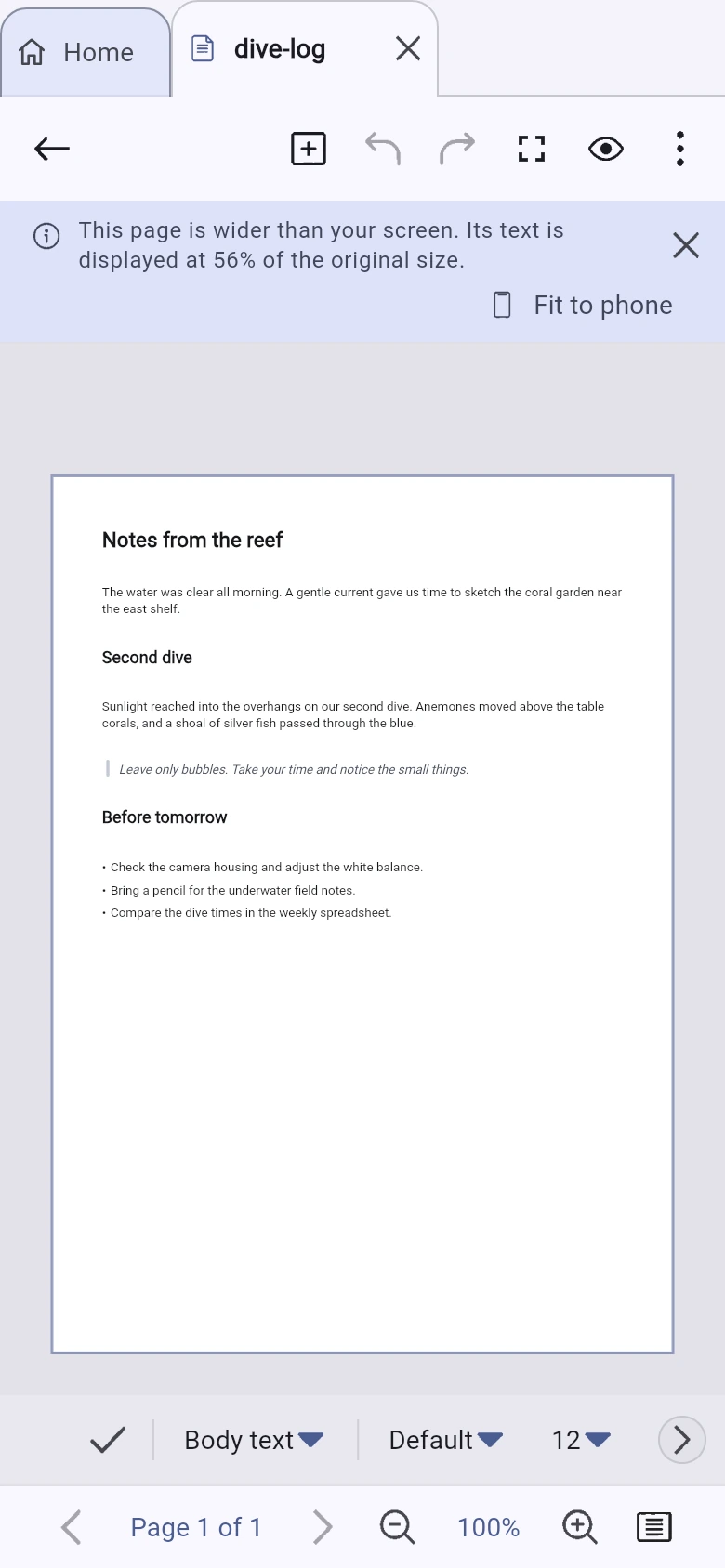
Inklume is designed for a tablet and stylus. On a phone, the workspace uses a single pane and side panels slide in when needed. When a page is scaled down, the app shows you the display scale.
See the scale at a glance
An A4 page may appear at roughly half its original size on a phone. Inklume shows the display scale — 56% in this example — and offers Fit to phone. This changes the page size and reflows the text, rather than just zooming in.
Tools within reach
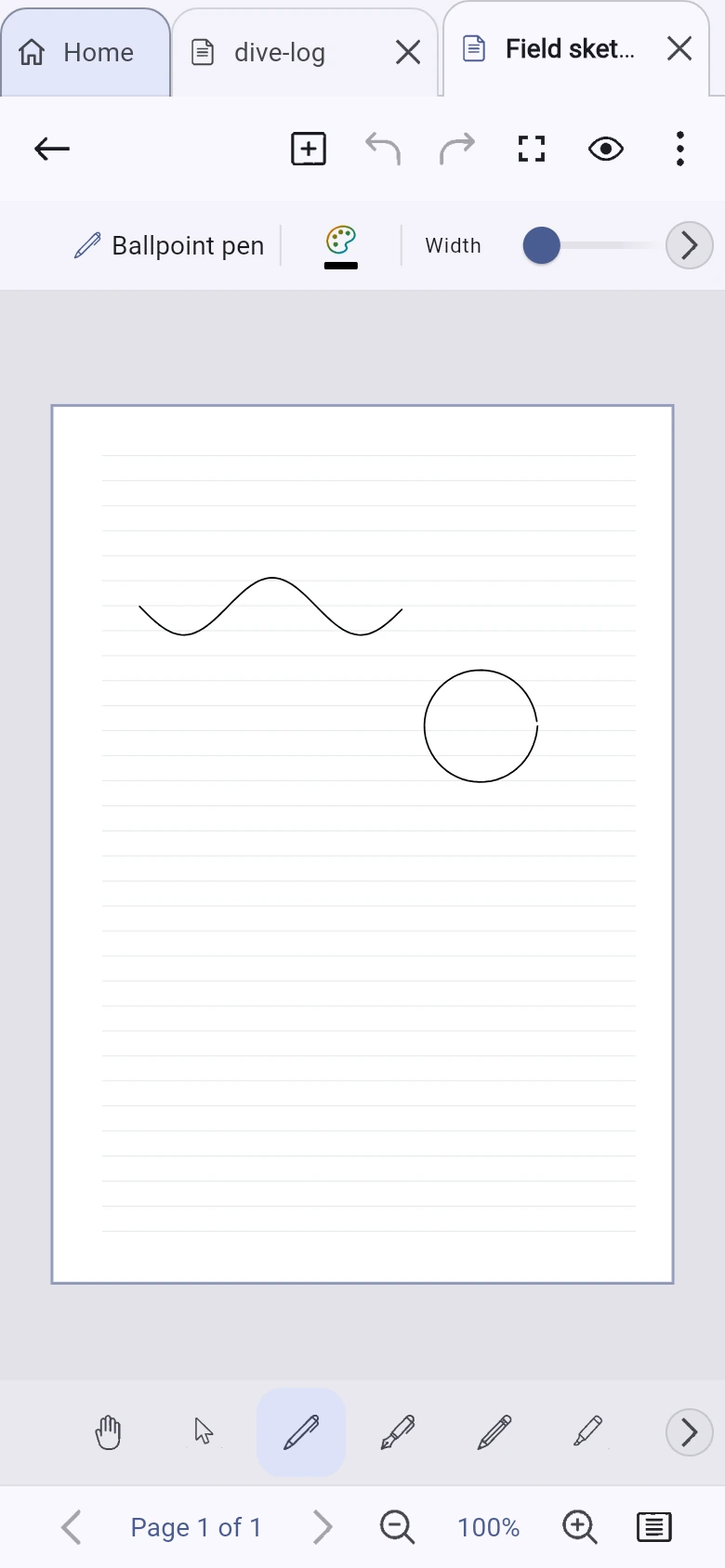
Pens, colours and the tool dock stay within reach, leaving the full screen width for the page above them. The main tools are available without switching modes.
The library comes with you
As the screen narrows, the library panel becomes an icon rail and then a slide-out panel. Your folders, tags and saved searches remain accessible on a phone.
The same details, at any size
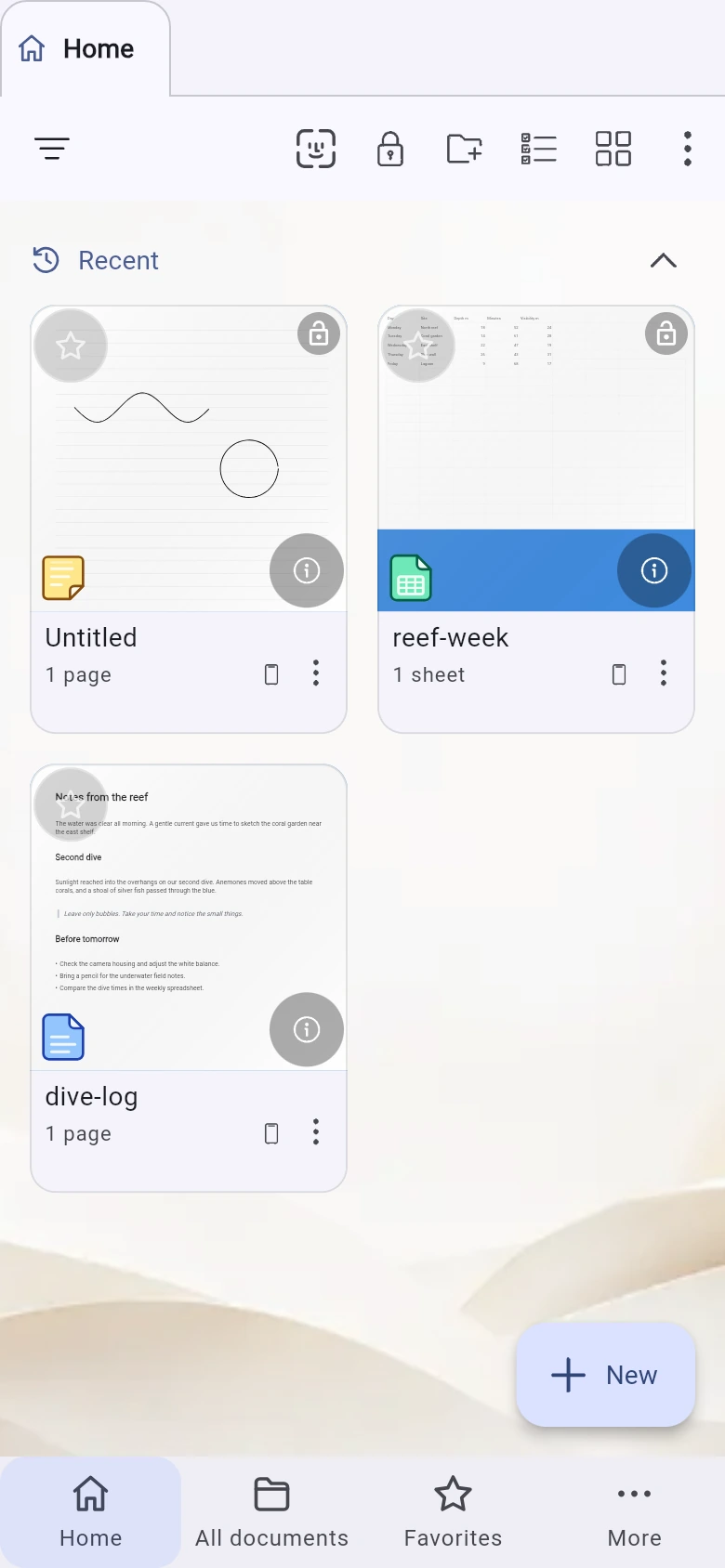
The same info button opens document details in every view: in a bottom panel on a phone, a side panel on a tablet and a separate column on desktop.
Privacy
Your notes do not need our server
Write and edit on your device without sending your notes to us. Inklume has no app server and does not collect your note content. Sync connects only to storage you set up.
- No account or sign-in is required to use the app.
- No analytics, crash reporting or advertising identifiers.
- Documents are saved in the library folder you choose, or in browser storage when using the web app — not in a database hosted by the developer.
- Optional sync uses a local folder or a WebDAV server you choose.
- Optional end-to-end encryption uses XChaCha20-Poly1305 and Argon2id. A passphrase warning is shown before you enable it.
- Backups are encrypted with a passphrase by default. Encryption covers the whole archive, including document titles.
Your notes stay with you
No account, no developer-hosted storage for your notes and no telemetry. There is nothing you need to opt out of.
Privacy policy
This policy covers Inklume and this website. Cloud connections are optional and depend on your app build and platform. Listing a provider here does not announce its release.
Local storage
Notes stay on your device or in browser storage unless you enable sync or export. No Inklume account, analytics, crash reporting or advertising identifiers. Cloud encryption and item locks do not encrypt local library files.
Optional cloud connections
With your consent, Inklume reads and writes notes, edits, attachments and sync metadata (file IDs, names, sizes, modification times, versions and checksums) in your chosen storage: Google Drive’s hidden Inklume app-data, OneDrive’s Inklume App Folder or CloudKit’s private database. Folder/WebDAV sync uses storage you choose. Google drive.appdata permission is for this private app-data; access to unrelated Drive files, Gmail or contacts is not requested.
Encryption and provider access
Without end-to-end encryption, your provider can read synced content. With it, content is encrypted before upload and unlocked with your recovery key; the developer and provider cannot decrypt it. Object sizes, opaque IDs and transfer timing remain visible. Backups are encrypted by default.
Authorization and credentials
Sign-in contacts your provider. Native credentials use OS/SDK secure storage. Microsoft web credentials use browser credential storage; Google web tokens are temporary and may require sign-in again. Inklume reads Google Drive’s opaque permissionId to verify the account and derive a library identifier stored locally, so devices connect to the same private library. It also reads Drive storage quota limits and usage. Google’s sign-in SDK manages its own authentication session.
Use of cloud data
These data are used only to store and synchronize your library, verify the connected account, detect changes and determine storage capacity. Notes and sync metadata remain on your devices and in the storage you choose, not on a developer-run document server. The developer does not sell Google user data, use it for advertising or train AI models on it.
Deletion and disconnect
You can delete local data or clear app storage. Cloud data remains in your account until you remove it; deleting a document synchronizes its deletion/Trash state, but retained versions and cloud objects may remain. Disconnect stops future sync, deletes app-owned saved credentials and preserves local/remote files; an opaque local library binding can remain for safe reconnection. Remove remote data or revoke access through your provider’s controls. Uninstalling Inklume does not erase cloud data.
Other requests you initiate
Feedback sends your submitted message, optional reply email and app version/platform/language to NeuraTiM. Web PDF import may load an external renderer after consent. Export/share sends selected files to the destination you choose.
This website
Your language preference is stored locally. Hosting processes ordinary request data, such as IP addresses. Optional donations are handled by Stripe or your chosen payment service under their own privacy policies.
The use of information received from Google Workspace scopes will adhere to the Google User Data Policy, including the Limited Use requirements.
Google API Services User Data PolicyQuestions or requests: info@neuratim.com
Know the limits
What Inklume cannot do yet
A few things to know before you start.
- Open a PDF as fixed page images for annotation, or use the dedicated PDF editor. That editor can change text only in supported layouts. It will not replace text if it cannot correctly reflow the layout.
- On first use, the browser downloads the software needed to display PDFs. Other platforms include it. PDF processing stays on your device.
- Word, OpenDocument, RTF, EPUB and HTML imports keep text, formatting and tables, but not field codes, tracked changes, footnotes, headers, footers or embedded objects. Nested tables are imported as text.
- Spell checking is available only on Android and iOS. The setting does not appear on desktop or web.
- PDF export renders pages as images rather than vector ink. An invisible text layer makes typed text searchable and selectable, unless you choose image-only export.
- There is no optical character recognition (OCR) or handwriting recognition, so you cannot search handwritten text.
- There is no built-in camera scanner or support for audio attachments. Import pictures from files or your gallery instead.
- A scanned PDF without a text layer opens as page images, with a notice explaining why. Without OCR, the words in the original scan cannot be edited as text.
- Hyphenation uses patterns rather than dictionaries, so suggested word breaks can be wrong. Insert a soft hyphen manually to choose where a word may break.
- Text pages hold text only. Tables, images, shapes and handwriting belong on canvas pages. A document can contain both page types.
- Text flows onto the next page when it reaches the bottom. There are no options to keep headings with the next paragraph, prevent isolated lines at page breaks or balance columns.
- Charts, pivot tables and .xlsx imports are not supported. Neither are RAND and RANDBETWEEN: calculations use stored data rather than random values.
- Sorting moves data and adjusts formulas. However, a range such as B2:B4 within the sorted area still refers to those cell positions, not to the items that occupied them before sorting.
- Direct connections to Google Drive, OneDrive, Dropbox and iCloud Drive are not available yet. Local-folder and WebDAV sync are available now.
- Sync runs only while Inklume is open and online. It does not run as an operating-system background task.
These are current limitations, not features hidden behind a paid upgrade.
Free
Free to use. No catch. No account.
Inklume does not need a server to store or process your notes. That keeps running costs low and helps us offer the app for free.
If Inklume has saved you the cost of another app, a donation is a welcome way to say thanks. Every feature is free, whether or not you contribute.
A simple way to say thanks
More ways to say thanks:
Prefer email? Get in touch
Get Inklume
Choose where you write
Inklume uses the same document format on desktop, tablet, phone and the web. See below for availability on each platform.
Web
No installation needed. Inklume runs in your browser and saves documents in that browser’s storage.
Try itWindows
The full desktop workspace, with Windows Hello for unlocking documents. Distributed as an MSIX package signed by the Microsoft Store.
Android
In closed testing on Google Play. Join the tester list and it installs like any other app.
iOS
For iPhone and iPad. On iPad, the page navigator and tool options appear beside the page.
macOS
A desktop workspace with the library sidebar, page navigator, properties panel and status bar visible together.
Free, with no account required. The Windows version is available in the Microsoft Store (x64, Windows 10 1809 or later). Android is in closed testing on Google Play. The macOS and iOS versions are in preparation.